


Key Features
- Instant Live Preview: See your theme modifications immediately in Weaverse Studio.
- Customizable Component Schema: Define configurable settings for your components within Weaverse Studio.
- Component-Level Data Loading: Utilize React Router style loaders within individual components to fetch data efficiently from the Shopify Storefront API or third-party sources.
- Tailwind CSS v4 Integration: Leverage the utility-first power of Tailwind CSS, configured CSS-first through
@themevariables inapp/styles/theme.css. - Easy Shopify Resource Selection: Conveniently select products, collections, pages, blogs, articles, and more directly within the editor.
- Multi-Market & Language Ready: Built to support sales across different markets and languages.
- Global Theme Settings: Easily customize site-wide elements like colors, fonts, and layout options.
Getting Started
The Pilot theme is open-source and available on GitHub. You can deploy it directly to platforms like Oxygen or Vercel, or clone the repository to your local machine for development and customization. If you clone it, remove its
.github folder first; see Installation.
Weaverse/pilot
Loading repository data...
Available Sections
Pilot includes a variety of pre-built sections to help you build pages quickly:
- Hero Image & Hero Video
- Slideshow
- Image with Text
- Image Gallery
- Columns with Images
- Promotion Grid
- Hotspots
- Featured Products & Featured Collections
- Single Product & Main Product
- Collection List & Main Collection
- All Products
- Related Products & Related Articles
- Blog Posts
- Countdown
- Newsletter
- Contact Us
- Our Team
- Map
- Video Embed
- Testimonials
- Judge.me Reviews & Ali Reviews
app/sections on GitHub.
Global Theme Settings
Pilot offers extensive global theme settings for site-wide customization. Learn more about configuring these options in our Global Theme Settings guide.
Using Metaobjects with Pilot
Weaverse integrates a metaobject picker, allowing you to easily select and display Shopify metaobjects within your theme. Follow these steps to set up and use metaobjects with Pilot:
1. Define Your Metaobject Structure in Shopify
- Navigate to Settings in your Shopify Admin.
-
Choose Metafields and Metaobjects, then click Add definition.
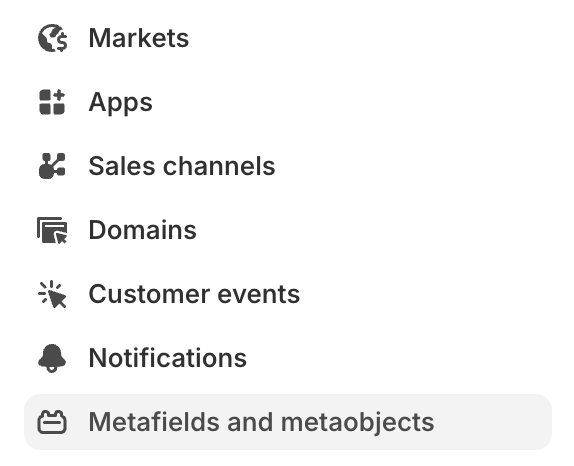
- Give your metaobject definition a clear name (e.g., “Team Member Profile”).
-
Add the necessary fields using Add field. Each field has specific types and validation options. For a team member profile, you might add:
avatar: File type (restrict to images).name: Single line text.title: Single line text.
- Configure any additional options like access controls.
-
Save the definition.
Example Setup:

2. Create Metaobject Entries in Shopify
- Navigate to Content > Metaobjects in your Shopify Admin.
- Click Add entry and select the definition you just created (e.g., “Team Member Profile”).
- Fill in the content for each field (upload an avatar, enter name and title).
- Save the entry.
-
Repeat this process to add more entries (e.g., for each team member).
Example Entry:

3. Display Metaobjects in the Pilot Theme
- Open your page in Weaverse Studio.
- Click Add section in the Page Outline (left panel).
- Add and register a custom section whose schema includes a metaobject picker. Pilot does not ship a Metaobject demo section.
- Add that section to the page, then use its picker in the Settings panel to select the metaobject entry.
- Observe the changes in the live preview. Video Demonstration: