Custom templates allow you to create unique layouts and designs for specific types of content within your Hydrogen storefront, similar to Shopify’s theme templates but fully integrated with Weaverse’s visual builder.
Step 1: Creating a Custom Template in Weaverse Studio
Open Weaverse Studio.
In the Studio topbar, click the page navigation dropdown.
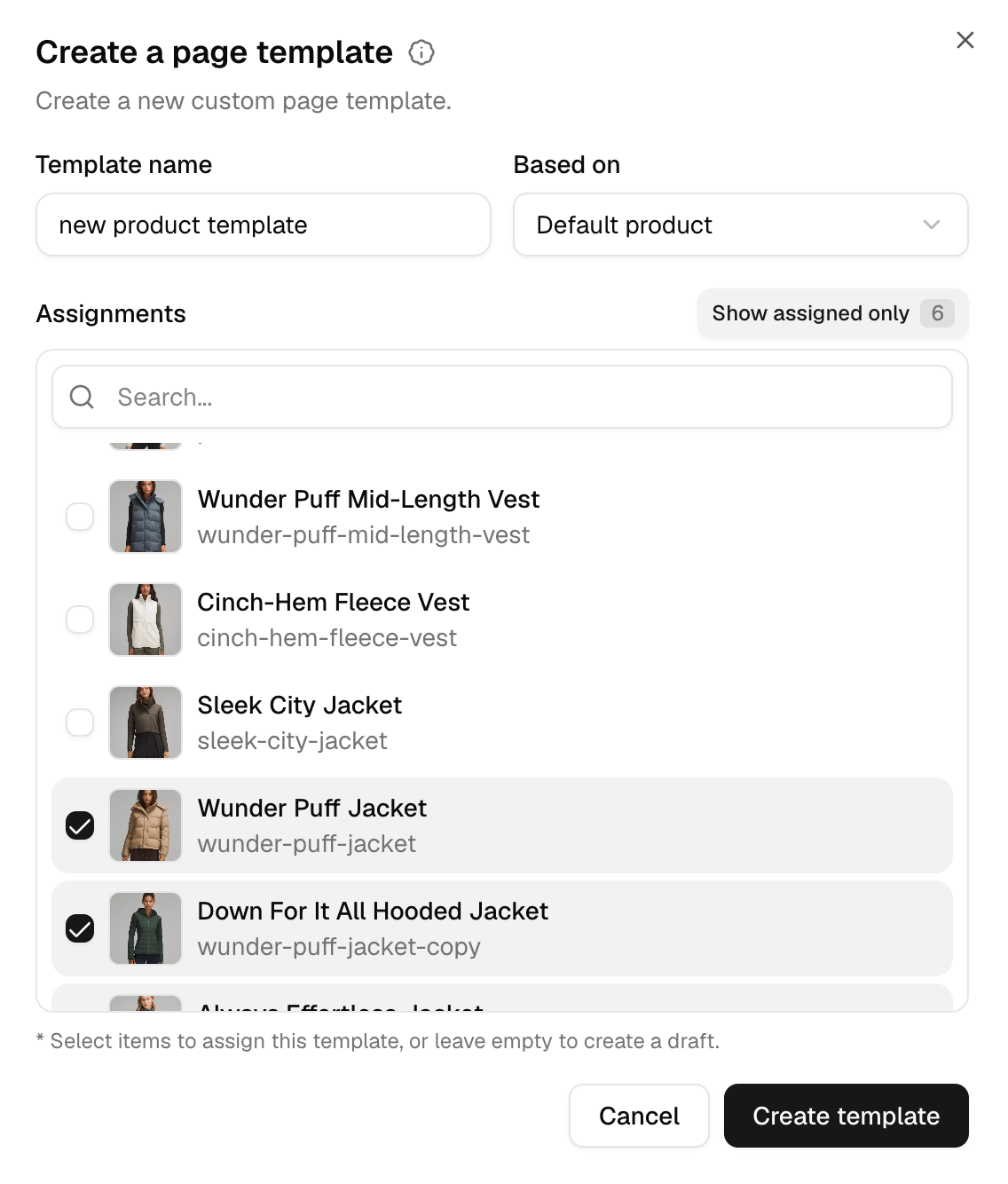
Choose the resource group you want, such as Products, then click Create template. The selected group determines the template type.
Enter the Template name (e.g., Product - Preorder, Collection - Lookbook Grid) and select an existing template under Based on, if available.
Optionally select resources under Assignments, or leave it empty to create a draft.
Click Create template or Create draft as shown. The new template starts with the selected base template’s content, rather than necessarily starting blank.
Step 2: Assigning the Template to a Shopify Resource
Once your custom template is created, it will open in Weaverse Studio. You can then assign it to specific Shopify resources (like products or collections) directly within the Studio:
Locate Assignment Options: You have two main ways to open the template assignment panel:
Left Panel: In the left-hand panel, under the template name, find the Assign button next to “Custom template”.
Settings Panel (Right): Alternatively, look for the Template assignments button in the Settings panel on the right side of the Studio. It might be grouped under sections like “Layout”.
Open Assignment Panel: Click either the Assign button or the Template assignments button.
Select Resources: A panel will appear displaying a list of available resources (e.g., products) that match the template type. Check the box next to each resource you want to apply this custom template to.
Save Assignments: After selecting the resources, click the main Save button in the Studio’s top bar to save your template assignments.
Now, whenever a visitor views one of the assigned resources on your live storefront, Hydrogen will need to load the data associated with this specific custom template instead of the default one.
Step 3: Configuring Hydrogen Routing for Custom Templates
Good news! You do not need to add complex logic to your Hydrogen route loaders to handle custom templates. Weaverse automatically detects if a custom template has been assigned to a resource (like a product or collection) based on the assignments you configured in Step 2.As long as your route loader calls context.weaverse.loadPage() with the correct type and handle, Weaverse will return the data for the assigned custom template if one exists, or fall back to the default template data otherwise.Standard Loader Logic (Example for Products):Your loader should look similar to the standard implementation, focusing on fetching Shopify data and then calling loadPage. Pilot’s product route already does this — it lives at app/routes/products/product.tsx and is registered in app/routes.ts as route(":productHandle", "routes/products/product.tsx") inside the products prefix.
// app/routes/products/product.tsx// Registered in app/routes.ts — a file under app/routes/ is not a route by itself.import type { LoaderFunctionArgs } from "react-router";import { validateWeaverseData, WeaverseContent } from "~/weaverse";// ... other imports (storefront query, etc.)export async function loader({ params, context }: LoaderFunctionArgs) { const { productHandle } = params; const { storefront, weaverse } = context; // 1. Fetch product data from Shopify. `storefront.query` throws on // transport/GraphQL errors, so wrap it in try/catch if you need to. const { product } = await storefront.query(/*... PRODUCT_QUERY ...*/, { variables: { handle: productHandle /* ... */ }, }); if (!product) { throw new Response(null, { status: 404 }); } // 2. Load Weaverse Page Data (Handles Custom Templates Automatically) // Simply provide the type and handle. Weaverse checks for assignments. const weaverseData = await weaverse.loadPage({ type: "PRODUCT", handle: productHandle, }); // 3. `loadPage()` returns `WeaverseLoaderData | null` — on failure it // resolves to `null` rather than throwing, so a try/catch around it // would never fire. Check the result instead; Pilot's // `validateWeaverseData` helper throws a 404 for a missing page. validateWeaverseData(weaverseData); // 4. Return all necessary data (a plain object — no `json()`) return { product, weaverseData /* ... other data */ };}export default function ProductRoute() { // Render <WeaverseContent /> using data from useLoaderData() // ... return <WeaverseContent />;}
Key Takeaway: The crucial part is ensuring you always pass the correct handle (e.g., product handle, collection handle) to weaverse.loadPage(). Weaverse uses this handle to look up assignments internally.
Step 4: Customizing the Template in Weaverse Studio
Once created and assigned, you customize the template visually:
Open the custom template in Weaverse Studio (select it from the template list).
Click Add Section to add banners, product details blocks, related items, etc.
Configure section settings, layouts, and styles specifically for this template.
Important: Sections added here define the structure for all resources using this template. Content specific to the resource (like product title, images) will populate automatically based on the data passed from the loader.
Use global theme settings and reuse global sections for consistency, or create unique sections just for this template.
Save and Publish the template in Weaverse Studio. Preview it by visiting a resource assigned to this template on your storefront.
Naming: Use clear, descriptive names for your templates (e.g., Product - Landing Page Style, Collection - Minimal Grid).
Scope: Use custom templates when you need a distinct layout for multiple items of the same type. For one-off pages or unique routes, consider a Custom Page.
Organization: Keep your template list tidy. Delete unused templates.
Consistency: Leverage global sections and theme settings where possible to maintain brand consistency even within custom templates.