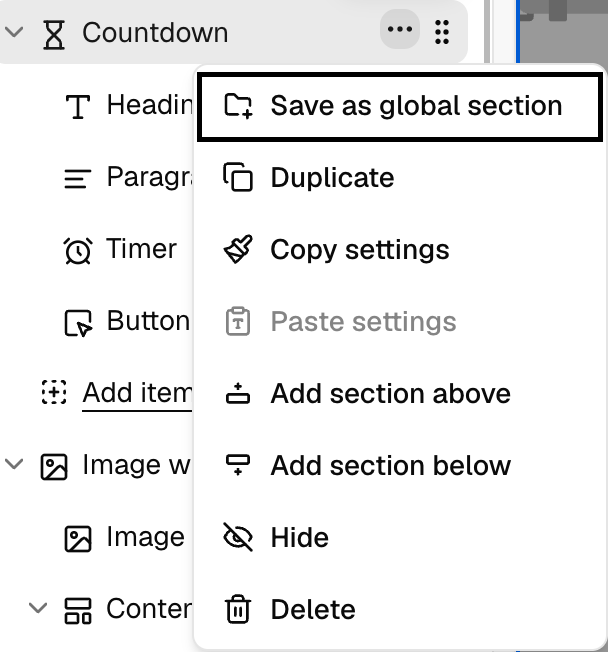
A global section is a reusable section you can add to any page in your project. You edit it once, and after you publish it, every page that uses it updates.
Under Global sections, click the section you want. It is added to the page immediately.
Each global section can be added only once per page. A section that is already on the current page is disabled, with the tooltip “This global section is already used in the current page.”
Open any page that uses the global section and edit it like a regular section. The right settings panel shows the section name and how many pages use it.
Optional: click Save section draft to keep your changes without making them live. You can come back to the draft later from any page that uses the section.
Click Publish section to update the section on every page that uses it.
The topbar Publish button does not publish global section edits. Use Publish section in the right settings panel. To throw away saved changes, click Discard section draft.
Open Advanced features in the topbar and select Global sections to see every global section in your project, how many pages use each one, and when it was created. From this list you can:
Rename a global section.
Delete a global section. Pages that use it keep the content as a regular section, which no longer syncs across pages.