

Build Your First Weaverse Hydrogen Store
This tutorial walks through building a modern Shopify Hydrogen storefront with visual customization capabilities. By the end, you’ll have a live store that you and your team can edit through Weaverse Studio.What You’ll Build
- Modern Shopify storefront with React Router v7 and React 19
- Visual editing capabilities through Weaverse Studio
- Custom components with schema-driven configurations
- Production-ready deployment on Shopify Oxygen
Prerequisites
Before starting, ensure you have:- Node.js 22.12 or newer (required by the current Pilot project; check with
node --version) - Shopify store (any plan, development store works fine)
- Basic knowledge of React, TypeScript, and Shopify concepts
- Time to configure your Shopify credentials, customize the theme, and deploy it
Part 1: Quick Start (5 minutes)
Install Weaverse Studio
- Go to Shopify App Store: Visit Weaverse on Shopify App Store
- Install the app on your Shopify store
- Open Weaverse from your Shopify admin dashboard
Create Your First Project
- Click “Create Project” in Weaverse Studio
- Choose the Pilot theme (recommended starter theme)
- Name your project (e.g., “My Store”)
- Click “Create”
 🎉 Success! You now have a Weaverse project with the Pilot theme. You can see the visual editor with pre-built sections ready to customize.
Part 2: Local Development Setup (10 minutes)
Set Up Your Development Environment
-
Clone the Pilot theme:
-
Install dependencies:
-
Set up environment variables:
Create a
.envfile in your project root:Update.envwith your store details:Where to find these values:WEAVERSE_PROJECT_ID: Copy from Weaverse Studio project settingsPUBLIC_STORE_DOMAINandPUBLIC_STOREFRONT_API_TOKEN:- Stores on a Shopify plan: install the Hydrogen sales channel (https://apps.shopify.com/hydrogen), create one Hydrogen storefront project, then run
npx shopify hydrogen env pullor copy values from Hydrogen sales channel → Storefront Settings → Environments and variables. - Development stores or stores without a Shopify plan: install the Headless sales channel (https://apps.shopify.com/headless), then copy the Storefront API values into
.envor give them to your AI agent to handle.
- Stores on a Shopify plan: install the Hydrogen sales channel (https://apps.shopify.com/hydrogen), create one Hydrogen storefront project, then run
SESSION_SECRET: Generated automatically by the Weaverse CLI/agent setup. For manual setup, generate withopenssl rand -hex 32.
-
Start the development server:
Your store will be available at: http://localhost:3456
Connect to Weaverse Studio
- Open Weaverse Studio in another browser tab
- Go to Project Settings → Preview URL
- Set Preview URL to
http://localhost:3456 - Save changes

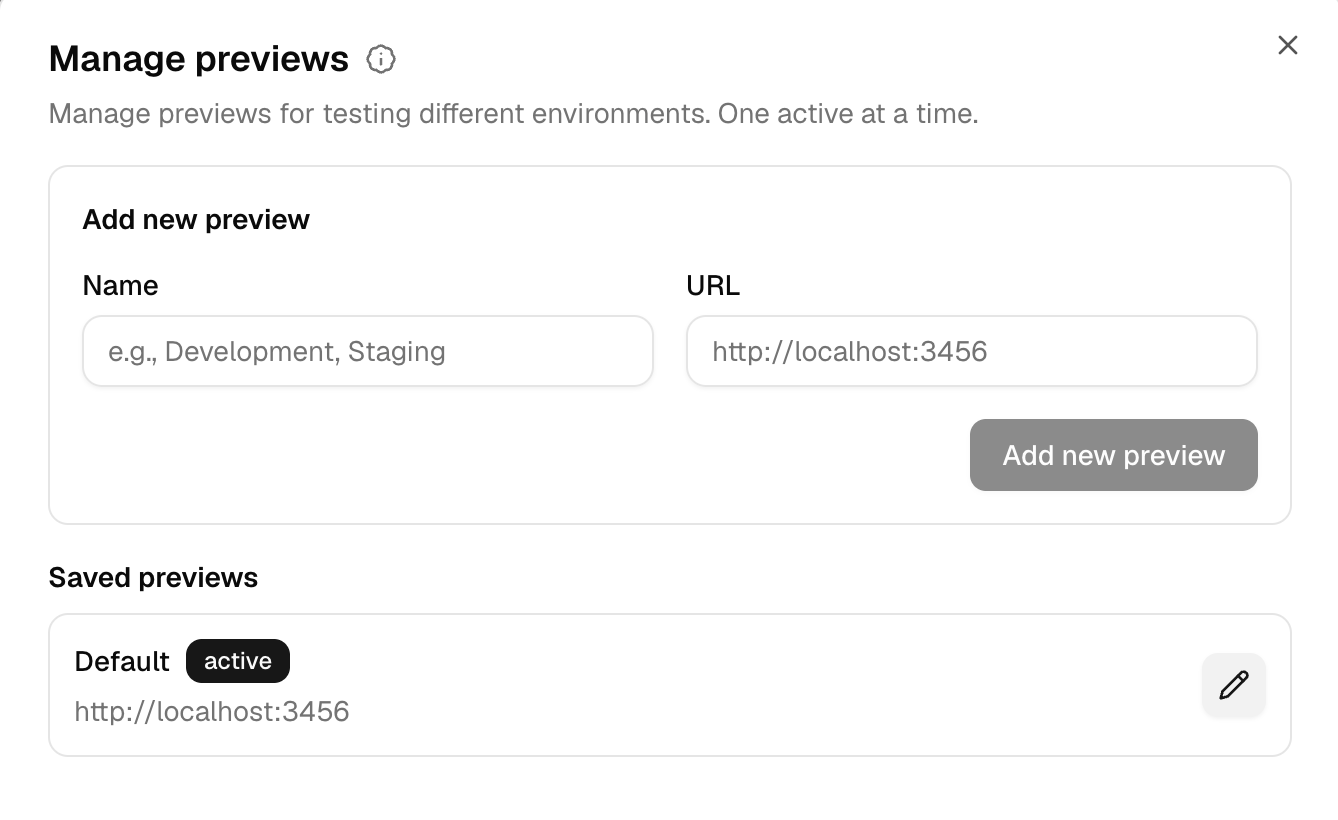
Part 3: Understanding Weaverse Architecture (5 minutes)
How Weaverse Works
Key Concepts
Components: React components that render sections of your store Schemas: Define what users can edit in Studio (text, images, colors, etc.) Loaders: Fetch data from Shopify (products, collections, etc.) Studio: No-code visual editor for content creatorsPart 4: Build Your First Component (15 minutes)
Let’s create a customizable Hero Banner that showcases your products.Create the Component
-
Create the component file:
-
Add the Hero Banner component:
Register the Component
- Add to components registry:
Test Your Component
- Go to Weaverse Studio
- Click “Add Section”
- Select “Hero Banner”
- Customize the content using the settings panel
- Upload a background image
- See changes appear instantly in your local preview
 🎯 Achievement Unlocked: You’ve created your first Weaverse component with full visual editing capabilities!
Part 5: Advanced Features (10 minutes)
Add Dynamic Product Data
Let’s enhance our Hero Banner to feature a specific product.-
Create a product loader:
-
Update component to use product data:
-
Add product selector to schema:
Performance Optimization
- Add caching to your loader:
- Always cache Shopify API calls for better performance
- Use TypeScript for better development experience
- Test components with different data states (empty, loading, error)
Part 6: Deployment (5 minutes)
Deploy to Shopify Oxygen
-
Build your project:
-
Deploy using Shopify CLI:
- Follow the prompts to connect your Shopify store
-
Update Weaverse Studio:
- Go to Project Settings
- Update Preview URL to your Oxygen deployment URL
- Save changes
Production Checklist
Before going live, ensure:- Environment variables are set correctly
- Images are optimized and loading properly
- All sections work as expected
- Mobile responsive design looks good
- Performance is measured on the deployed site (run Lighthouse and check Core Web Vitals)
- SEO metadata is configured
Go Live
- Set your Oxygen deployment as your primary domain in Shopify admin
- Test thoroughly on the live site
- Train your team on using Weaverse Studio
Next Steps
Expand Your Store
Add More Components:- Product grids with filtering
- Customer testimonials
- Newsletter signup forms
- Collection showcases
- Multi-language support
- B2B customer groups
- Advanced search and filtering
- Custom checkout experiences
- Image optimization strategies
- Caching best practices
- Core Web Vitals improvements
Learning Resources
- Component Development Guide - Deep dive into component creation
- Schema Reference - Complete schema options
- Styling & Theming - Performance optimization and design patterns
- Join our Slack - Get help from the community
Common Issues
Component Not Showing in Studio?- Check component is exported correctly
- Verify schema syntax
- Ensure component is registered in
components.ts
- Check development server is running
- Verify Preview URL in Studio settings
- Clear browser cache
- Ensure all environment variables are set
- Check build logs for errors
- Verify Shopify app permissions
What You’ve Accomplished
In just 45 minutes, you’ve: ✅ Built a modern Shopify storefront with React Router v7✅ Created custom components with visual editing capabilities
✅ Connected Shopify data dynamically to your components
✅ Deployed to production on Shopify Oxygen
✅ Set up a workflow for continuous development and content updates Your store is now ready for your team to manage visually through Weaverse Studio, while you focus on building amazing shopping experiences. Ready to build something amazing? Join our Slack community and show us what you create!